

The old way to set this up is dead. If you learned Shopify dynamic remarketing by pasting a remarketing tag into theme.liquid and dropping a script into the checkout’s Additional Scripts box, none of that works now. Google retired the legacy tag, and Shopify shut the Additional Scripts door.
It’s still worth doing. Most visitors don’t buy on the first trip, and pulling them back is some of the highest-return spend in paid media. One ecommerce store we manage grew from $525,000 to $918,000 in monthly revenue inside a year, the kind of volume that makes every recovered shopper count.
Google describes dynamic remarketing as ads that show “products or services that people viewed on your website or app,”1 which is what makes it convert. So consider this an updated guide to set up dynamic remarketing in Shopify the way it works in 2026, where the bones are the same but the plumbing is different.
The Rundown
- Modern Shopify dynamic remarketing runs on the Google tag, not a legacy remarketing tag hand-coded into a theme.
- Prerequisites are a Google Merchant Center account, a synced product feed, and a GA4 (Google Analytics 4) property, all linked to Google Ads.
- Checkout tracking moved from Additional Scripts to Shopify checkout Customer Events, which run in a privacy sandbox.
- The Google tag builds data segments on its own, including All Visitors and All Converters.
- The Google & YouTube channel is the lowest-effort path for most stores.
- Campaigns attach those segments to Performance Max or Display and use the feed for product-specific ads.
Table of Contents
Frequently Asked Questions
What is Shopify dynamic remarketing?
Shopify dynamic remarketing shows past visitors ads featuring the exact products they viewed in your store. It pulls those products from your Merchant Center feed and follows shoppers across Google’s networks.
Does the old theme.liquid and Additional Scripts method still work?
No, that method is done. Shopify made Additional Scripts view-only and retired the legacy checkout customizations, so Customer Events is now the supported way to track Shopify checkout events.
What do you need before dynamic remarketing setup?
Any dynamic remarketing setup needs a Google Ads account, a linked Merchant Center with a product feed, and GA4. The Google tag and a conversion ID tie it all together.
What is the easiest way to set up dynamic remarketing on Shopify?
The Google & YouTube channel is the easiest way to run Google Ads dynamic remarketing on Shopify, since it syncs the feed and installs the tag for you. Stores that need more control use a Customer Events custom pixel instead.
What Dynamic Remarketing Actually Does
Plain remarketing shows the same generic ad to everyone who visited. Dynamic remarketing goes further: it shows each person the specific products they looked at, pulled live from your product feed.
Think of it as a billboard versus a sticky note with someone’s name on it. One is broad. The other is personal, and personal converts.
What Changed Since the Old Guide
Three shifts reshaped Shopify dynamic remarketing since the 2016 version of this post, and ignoring them is why a lot of stores quietly stopped tracking.
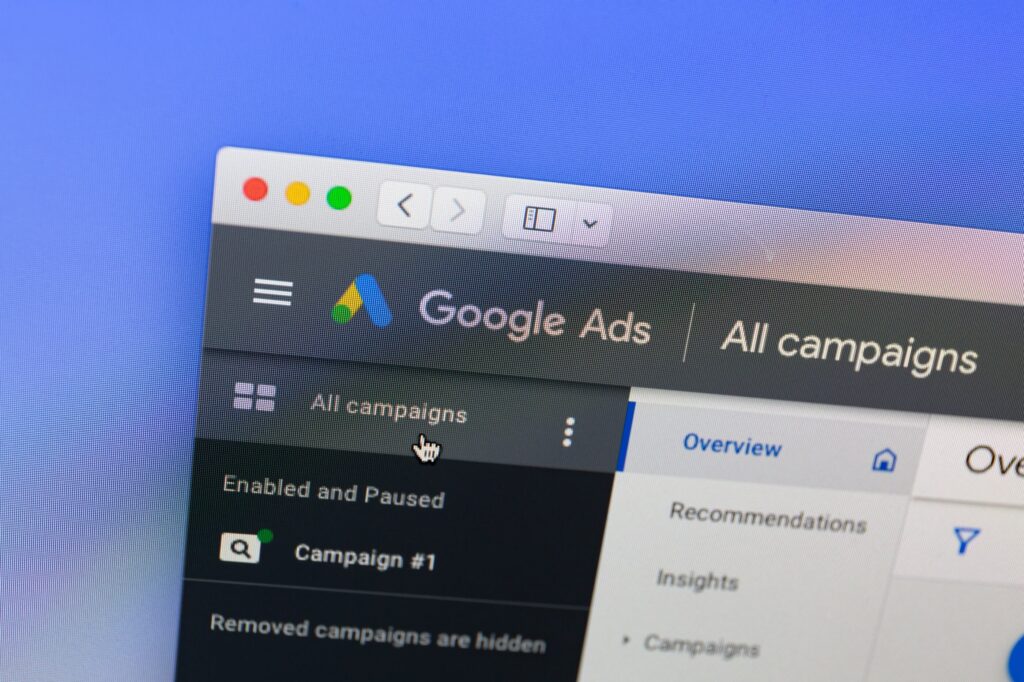
- The standalone remarketing tag became the Google tag, now set up inside Google Ads under Tools, then Audience manager. One tag handles both conversions and remarketing.
- “Remarketing lists” became data segments. Same idea, new name, and the tag builds the core ones for you.2
- Shopify deprecated checkout.liquid and Additional Scripts. Plus stores lost editing on August 28, 2025, and non-Plus thank-you and order-status pages follow by August 26, 2026, with auto-upgrades already running.3
Before You Start: Prerequisites
This dynamic remarketing setup needs a few accounts in place first, or nothing downstream will fire.
- A Google Ads account with the Google tag and your conversion ID ready.
- A Google Merchant Center account linked to Google Ads.
- A product feed in Merchant Center, synced through the Google & YouTube channel.
- GA4 set up and linked to Google Ads.
- Consent Mode v2 (Google’s consent signaling) configured if you sell to the EEA (European Economic Area) or UK.
How to Set Up Shopify Dynamic Remarketing, Step by Step

There are three honest ways to do this. Running Google Ads dynamic remarketing on Shopify comes down to how much control you want and how comfortable you are in code.
| Method | Best For |
| Google & YouTube channel | Most stores, fastest setup, no code |
| Customer Events custom pixel | More control over events and consent |
| Google Tag Manager or third-party app | Advanced builds and custom data layers |
The dynamic remarketing setup below uses the recommended path, start to finish.
- Connect the Google & YouTube channel in Shopify, then sync your product feed to Merchant Center. New products flow in on their own.
- In Google Ads, open Tools, then Audience manager, then your data sources, and grab the Google tag and conversion ID.
- Add the Google tag to your store. The channel handles it, or you place the tag and set the retail event snippet so product IDs match the feed.
- Track checkout and purchase events with a Customer Events custom pixel, since Additional Scripts is gone. Mind the sandbox and the consent field on each event.
- Confirm your data segments are filling up under your data, including All Visitors and All Converters. Allow 24 to 72 hours, and remember Google’s minimum user thresholds.
- Build the campaign in Performance Max or Display, attach your segments, point it at the feed, and set membership durations that match your buying cycle.
- QA with Google Tag Assistant, then check that the product IDs the tag collects match the IDs in your feed.
Common Setup Mistakes
Most Shopify dynamic remarketing problems trace back to a short list of avoidable errors.
- Product IDs in the tag that don’t match the feed, so the ads show nothing.
- Leaving the old legacy tag firing next to the new Google tag, which double-counts everything.
- Skipping Consent Mode, then wondering why segments stay empty across the EEA and UK.
- Membership durations set too short for a long buying cycle.
- Forgetting to exclude recent purchasers, so you pay to chase people who already bought.
- Still trusting Additional Scripts, which no longer runs.
Stuck on the tag or the feed? Happy to take a look.
Where Shopify Dynamic Remarketing Is Headed
It’s folding into automation. Performance Max already blends remarketing with prospecting, and it treats your data segments as signals rather than hard targets.
The bigger trend is first-party data. As cookies keep wobbling, the stores that win will be the ones feeding clean signals through server-side tracking and a healthy product feed.
The Bottom Line
None of this is hard once the plumbing is right. Get the feed clean, put the Google tag in the right place, move checkout tracking to Customer Events, and let the data segments build. Done well, Shopify dynamic remarketing pays for itself fast.
If the migration off the old setup feels like a lot, that’s fair, it caught plenty of stores off guard. Coalition Technologies is a Shopify Partner and runs these builds all the time, so a free proposal is there if you want a hand.
Sources
- Google Ads Help, “About your data segments,” support.google.com.
- Google Ads Help, “How your data segments work,” support.google.com.
- Shopify Help Center, “Upgrading and replacing your Thank you and Order status pages,” help.shopify.com.